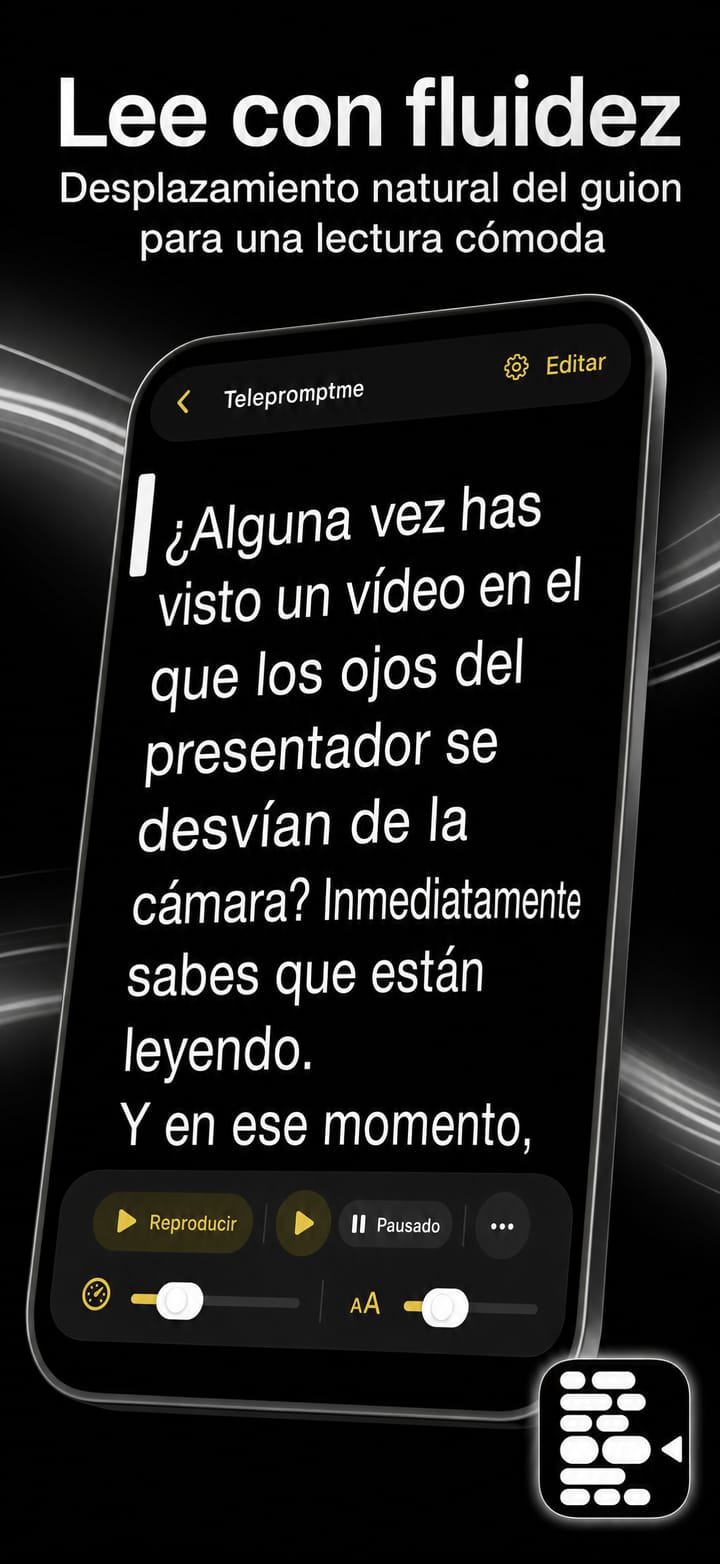
Desplazamiento fluido del guión
Desplázate automáticamente a la velocidad que establezcas o marca el ritmo de todo el guión para llegar en un momento exacto.
 Telepromptme
 Autoprompt
 DualScroll
 Narrate
 Lightboard Pro
 Earwig
 ChatterFish
 PointyPointer
 intuner
Telepromptme desplaza tu guión a una velocidad constante y perfecta mientras lees, para que puedas entregar cada línea mirando directamente a la lente. Grabe videos con calidad de estudio, agregue subtítulos en vivo y controle un equipo de teleprompter completo, todo desde una sola aplicación.
Telepromptme is focused, fast and refined — built to do one job beautifully.
Desplázate automáticamente a la velocidad que establezcas o marca el ritmo de todo el guión para llegar en un momento exacto.
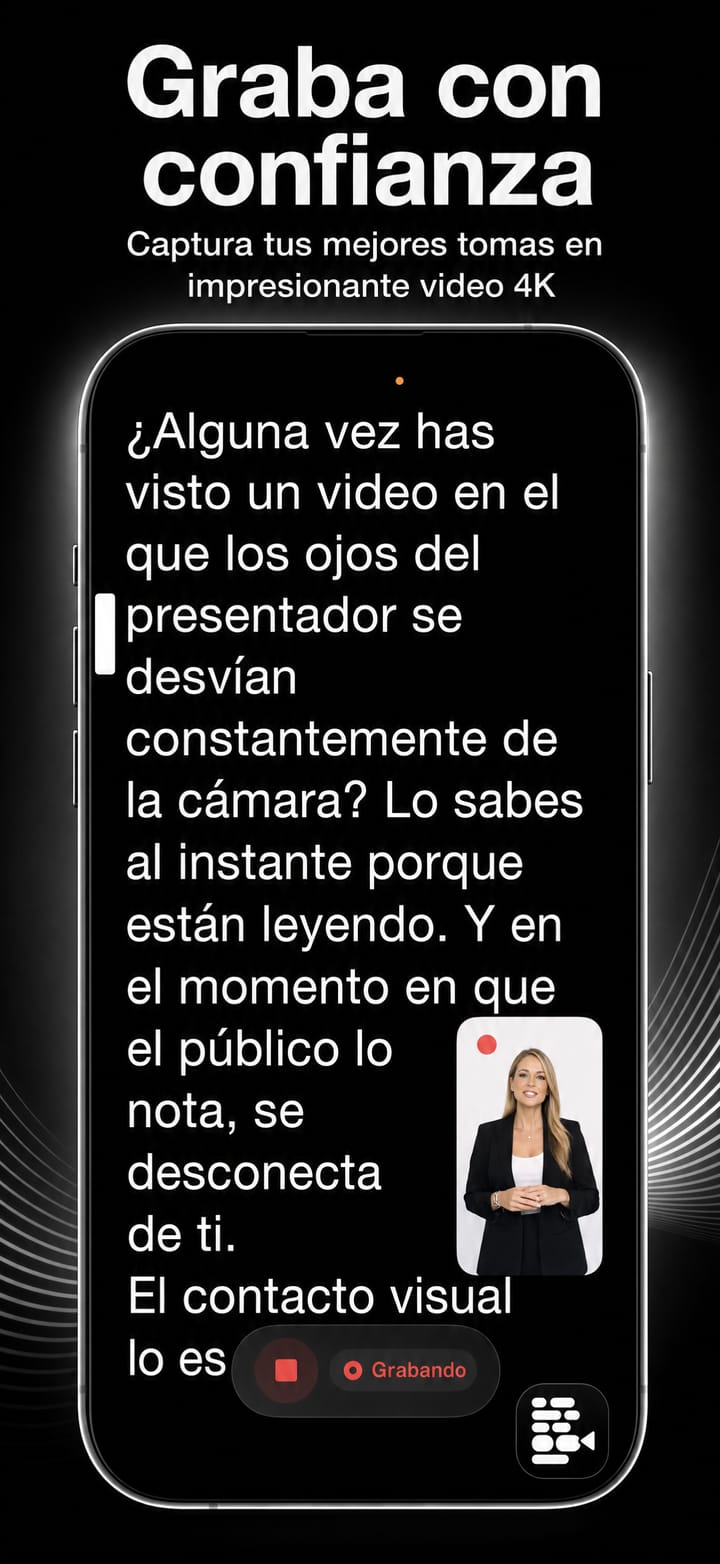
Capture su actuación en 4K nítido directamente desde la aplicación, sin necesidad de equipo adicional.
Graba tu propia vista con la habitación levantada limpiamente, solo tú, en estudio, sin necesidad de pantalla verde.
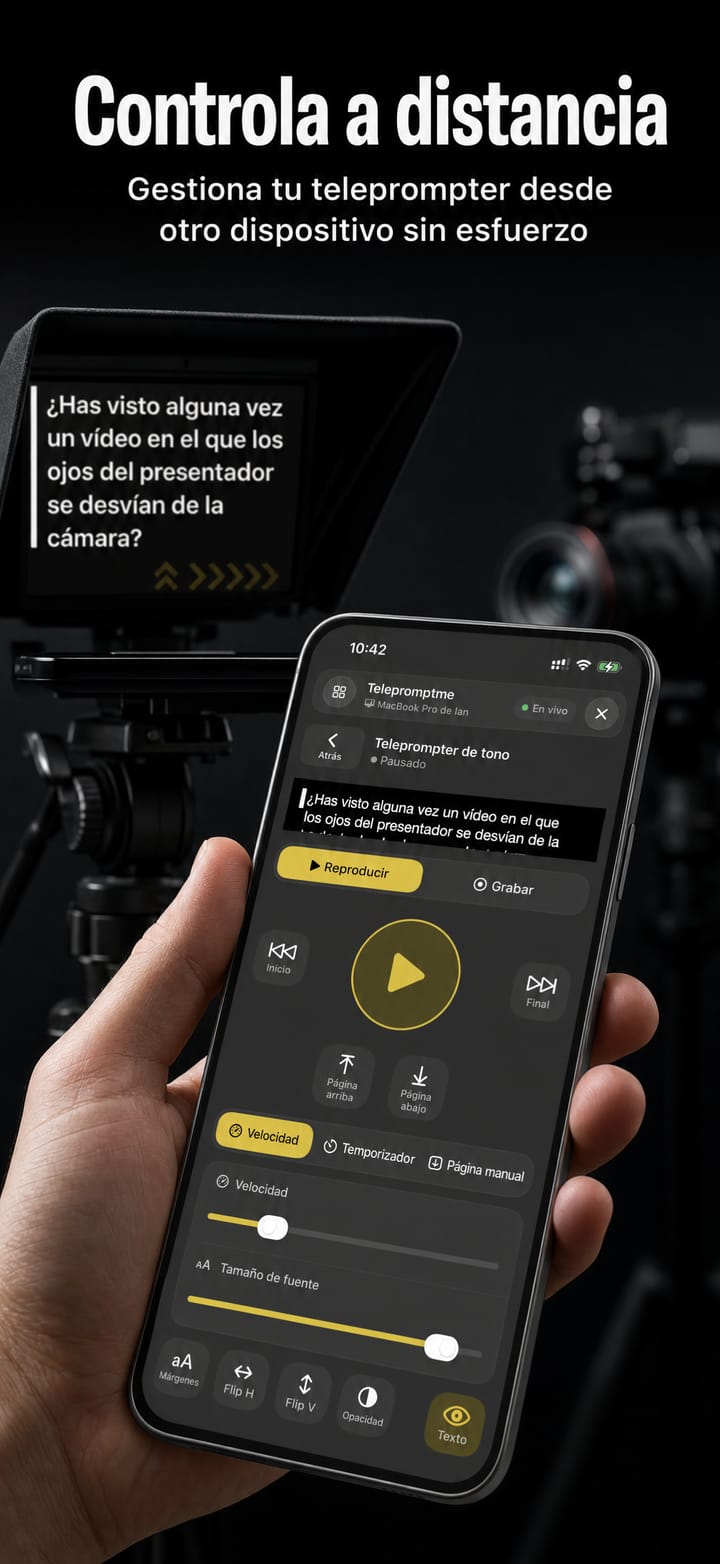
Controle el desplazamiento desde un segundo dispositivo, otra aplicación Telepromptme o hardware externo.
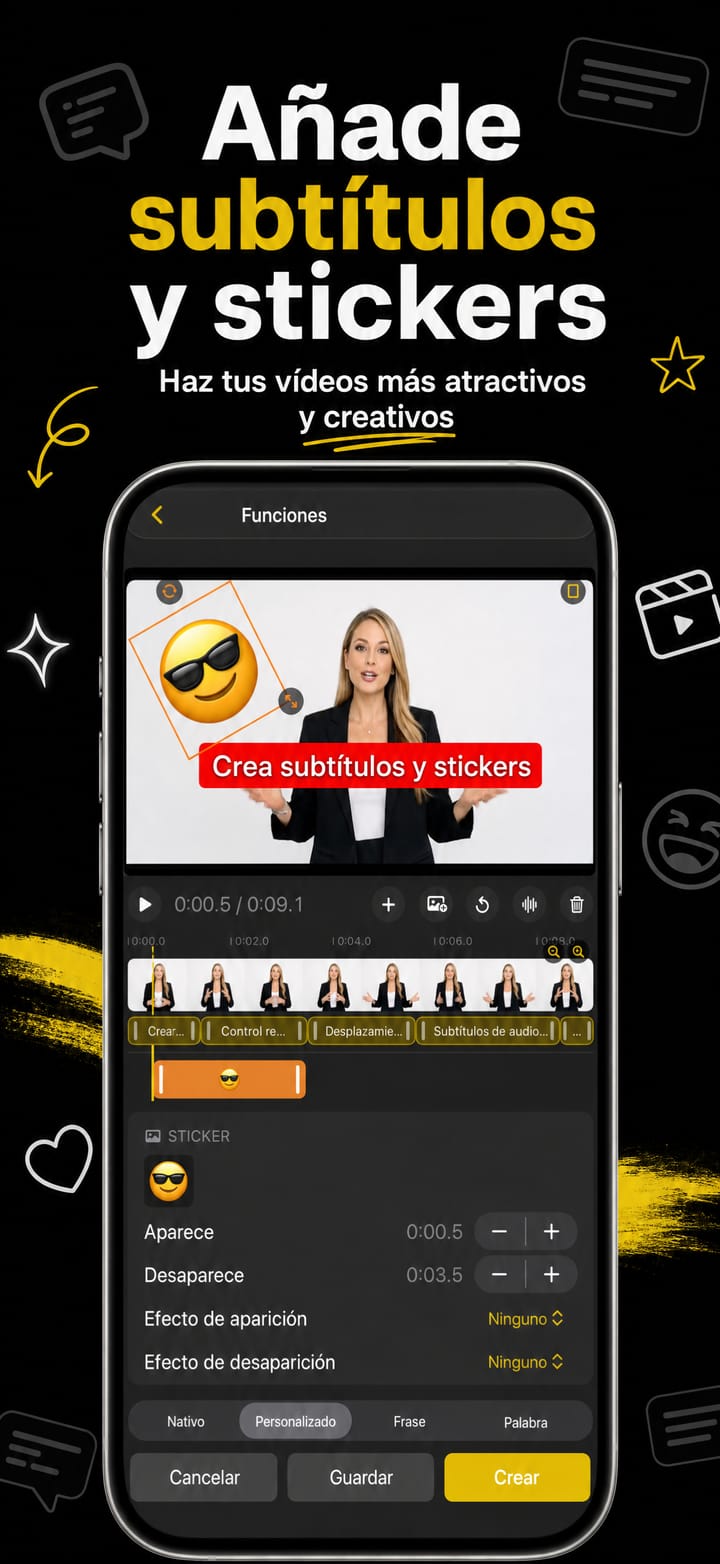
Grabe su guión como subtítulos en el momento perfecto en la grabación terminada.
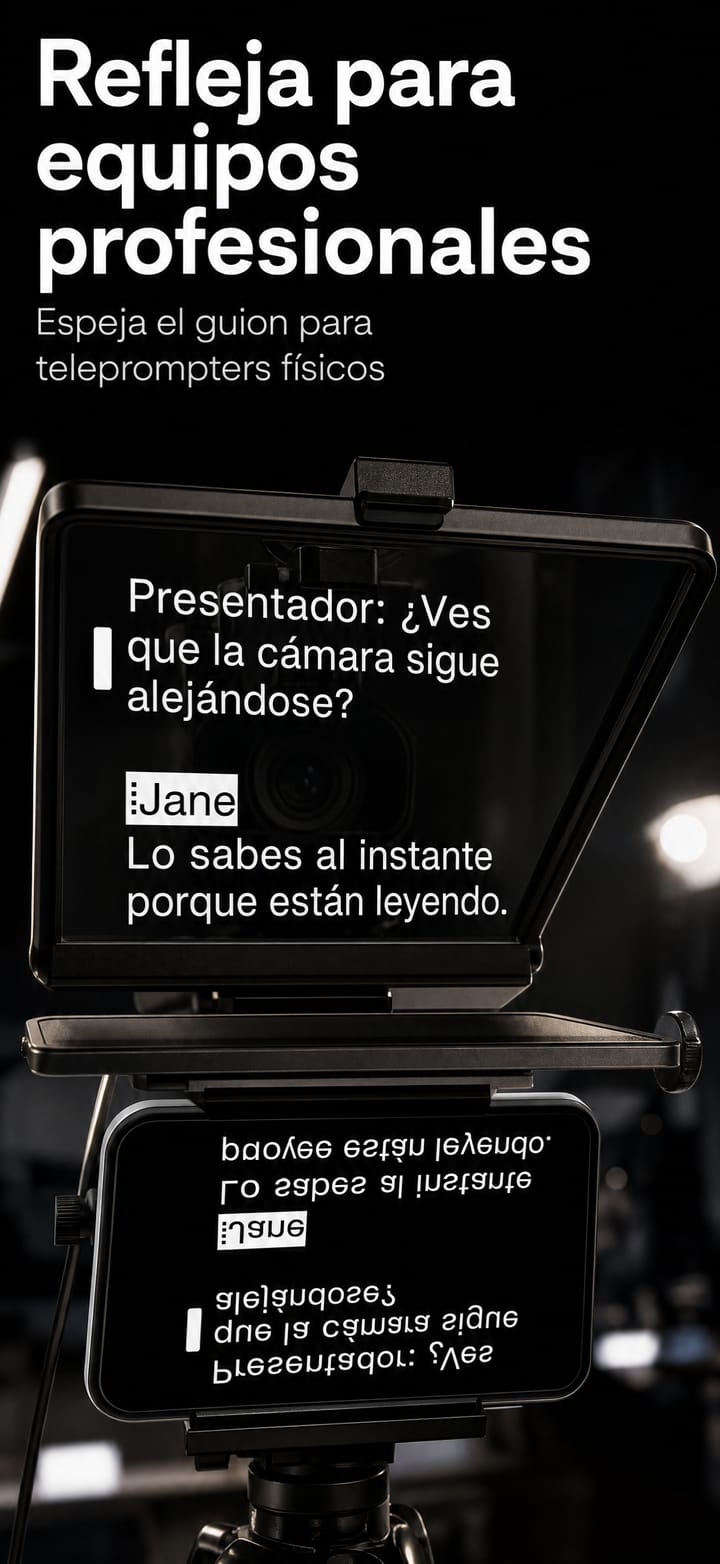
Gire horizontal o verticalmente para equipos de teleprompter con divisor de haz.
Envíe una segunda ventana de desplazamiento a una pantalla o monitor externo.
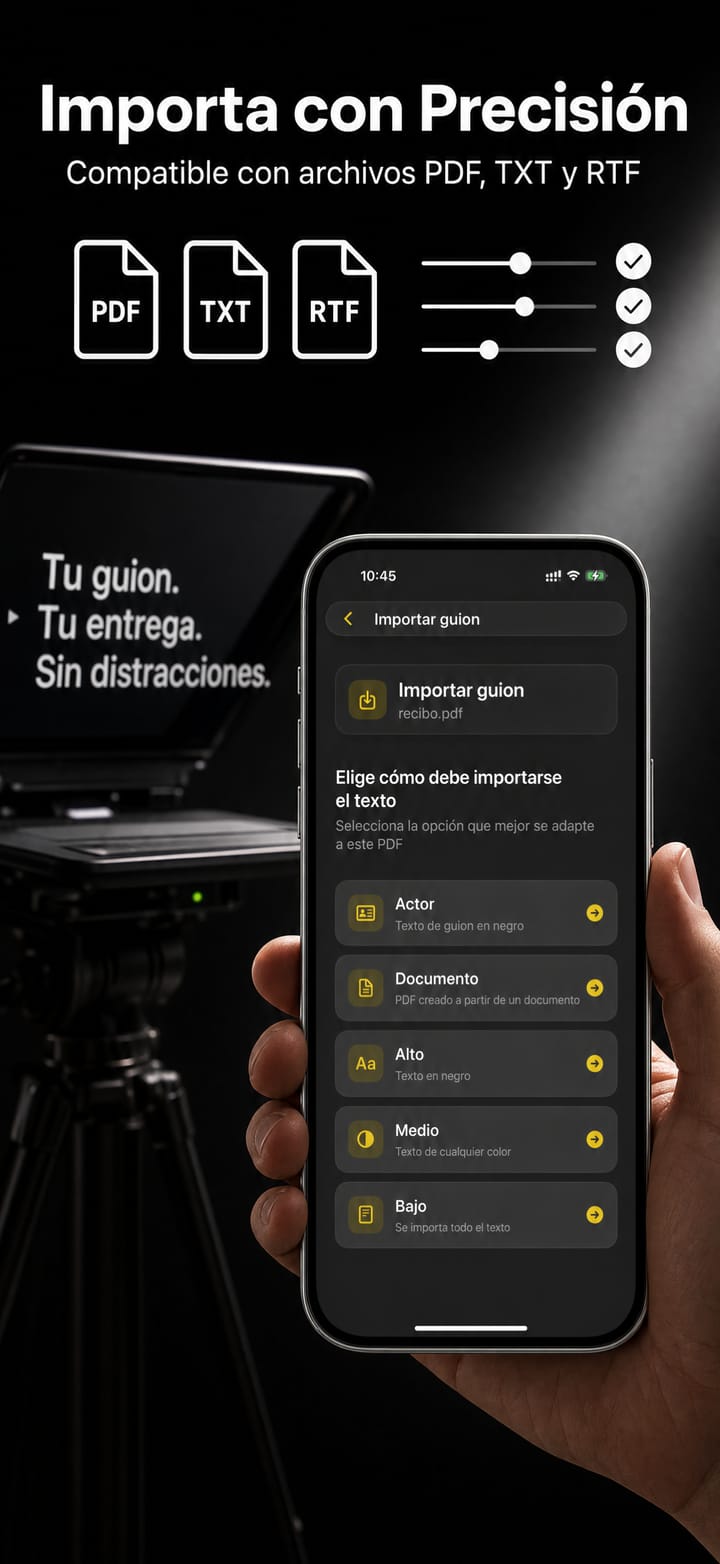
Ingrese archivos PDF, RTF y TXT y comience a leer en segundos.
Tus secuencias de comandos te siguen automáticamente a través del iPhone, iPad y Mac.
Un fondo transparente hace flotar su guión sobre Zoom, Teams y Meet.
Ajuste la velocidad, el tamaño de fuente y los márgenes con un modo exclusivo para dislexia.
Alinee varios guiones para reproducirlos automáticamente uno tras otro, o repita uno hasta que la toma sea perfecta.
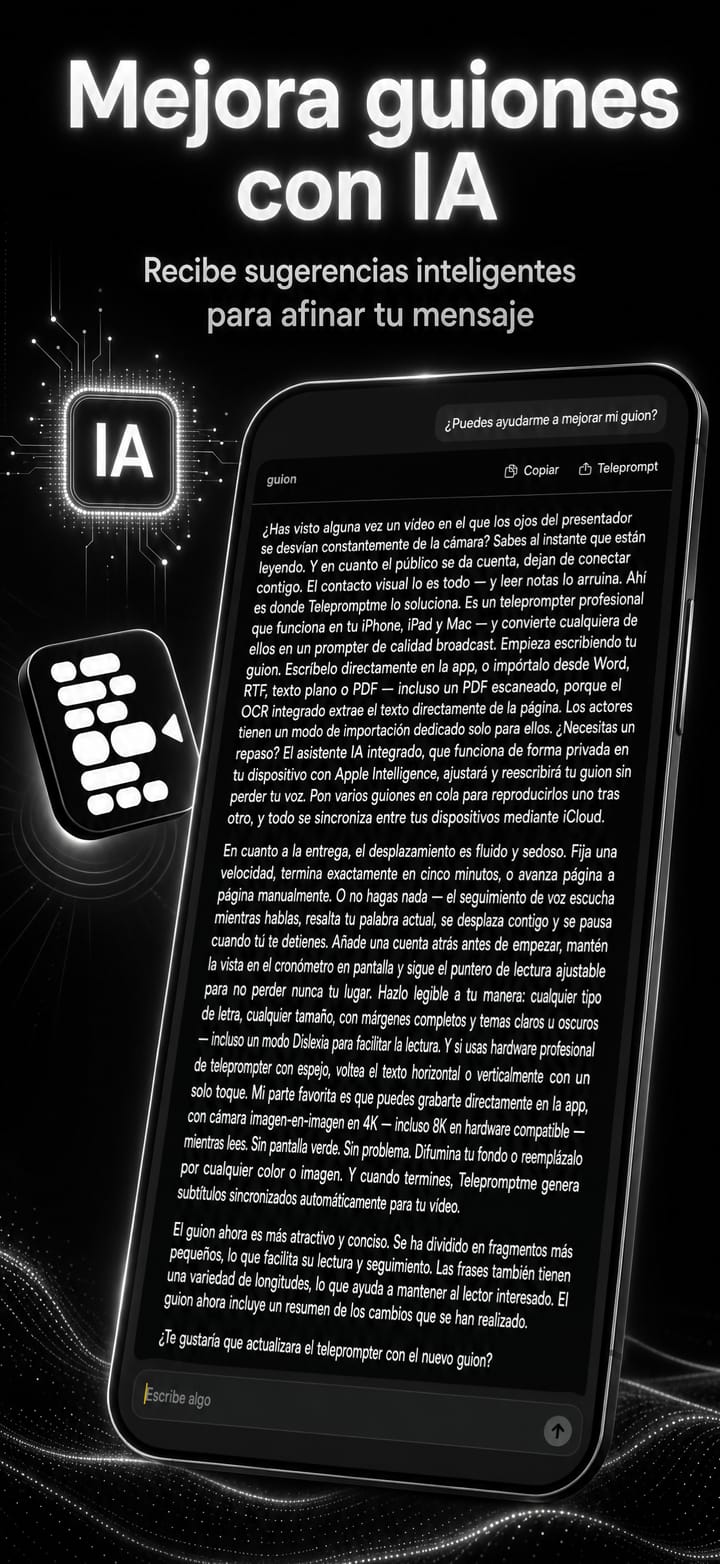
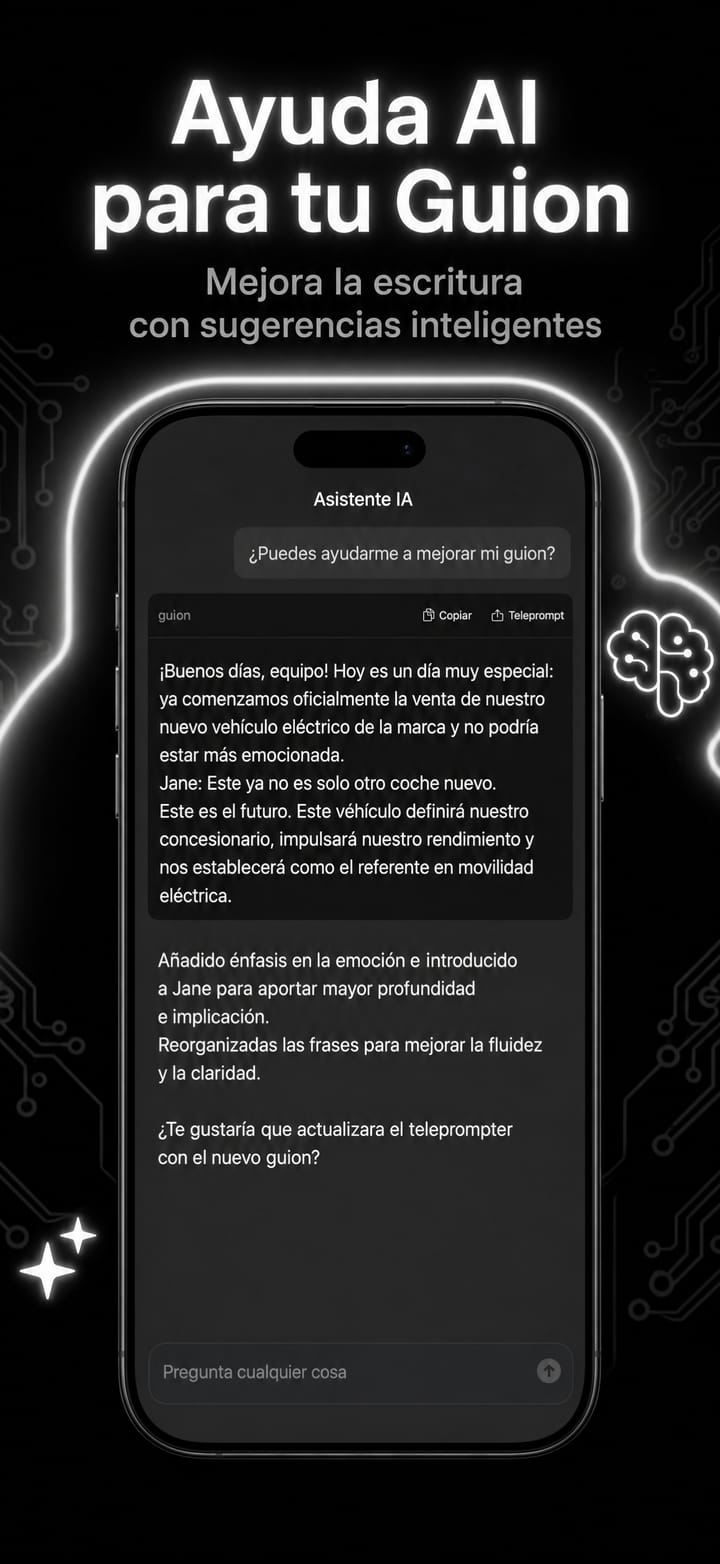
Ajusta, acorta o mejora tus palabras con un toque con Apple Intelligence, directamente dentro del editor.
El mismo apuntador en iPhone, iPad, Mac y Apple Vision Pro. Compre una vez, lea en cualquier lugar.
Desplázate automáticamente a la velocidad que establezcas o marca el ritmo de todo el guión para llegar en un momento exacto.
Capture su actuación en 4K nítido directamente desde la aplicación, sin necesidad de equipo adicional.
Graba tu propia vista con la habitación levantada limpiamente, solo tú, en estudio, sin necesidad de pantalla verde.
Controle el desplazamiento desde un segundo dispositivo, otra aplicación Telepromptme o hardware externo.
Grabe su guión como subtítulos en el momento perfecto en la grabación terminada.
Grabado directamente dentro de la aplicación, en iPhone, iPad y Mac.
¡El desarrollador arregló todo y es magnífico! ¡Las mejoras en la edición de texto también son maravillosas!
Una compra cubre tanto iOS como macOS. No se requiere cuenta.
Prueba la experiencia completa con límites ligeros.
Todo, para siempre, en iOS y macOS.
Funciones profesionales facturadas anualmente.
Descárgala en App Store y comienza en minutos, en iPhone, iPad y Mac.