DualScrollDual Teleprompter

Two scripts. One confident take.

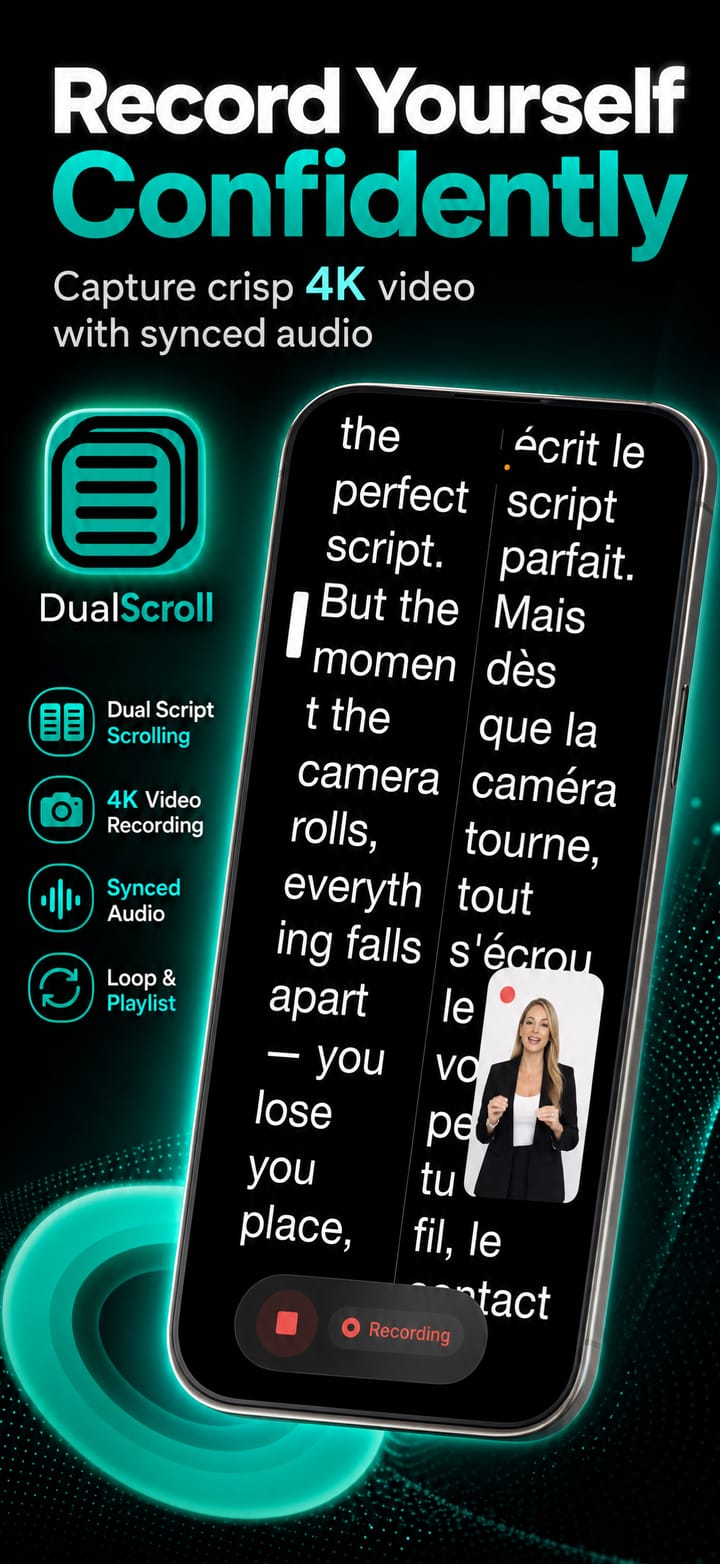
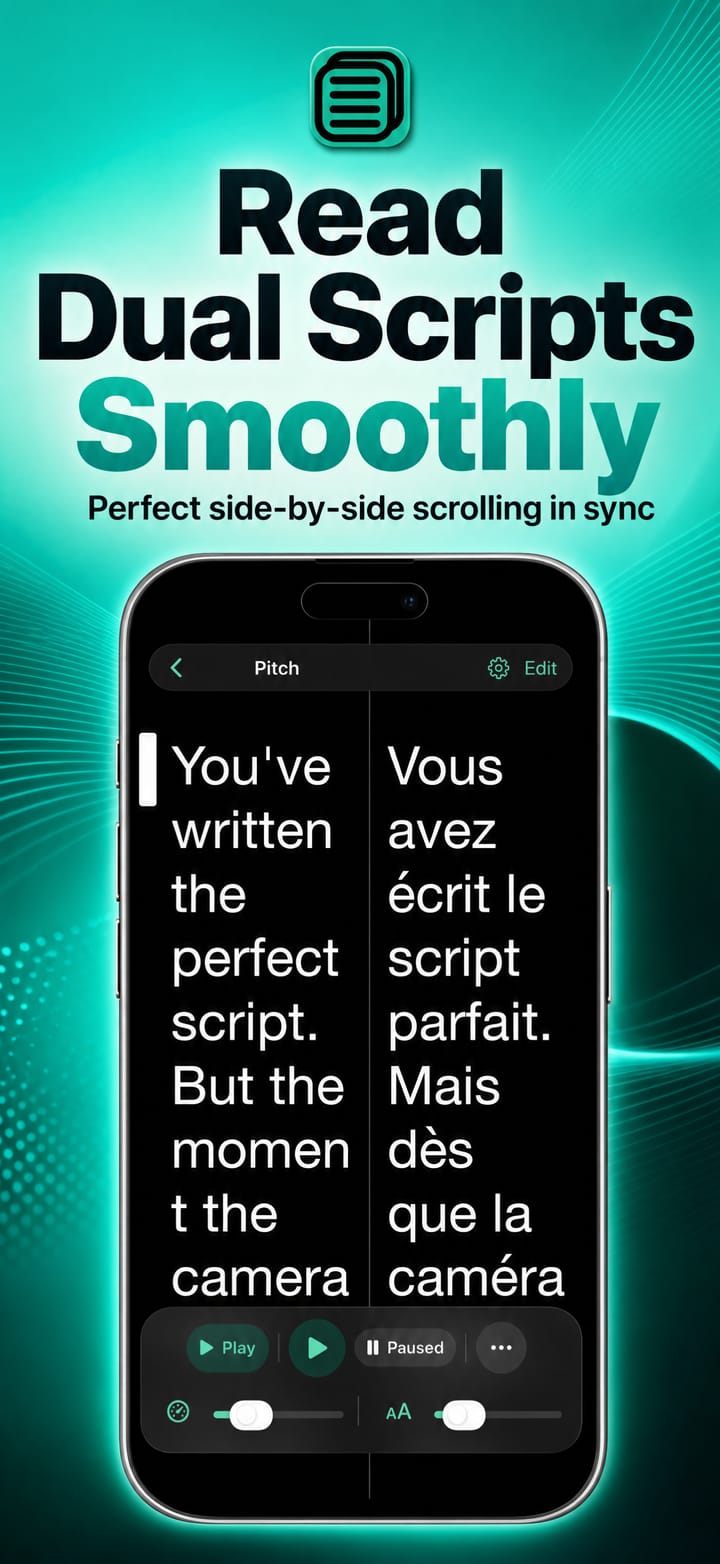
DualScroll runs two scripts side by side, scrolling together in perfect lockstep. Read in one language while you glance at another, keep a translation alongside your delivery, or pair a script with cues and stage directions.

iOSmacOSUniversal purchase

5.0 · 5 ratings on the App Store

Two synced scriptsGreat for languagesRecord up to 4K
Features

Everything you need, nothing you don't.

DualScroll is focused, fast and refined, built to do one job beautifully.

Two scripts, one scroll

Display two scripts side by side, scrolling together for a second language or alternative text.

Record up to 4K

Capture your performance in 4K while both scripts roll.

Erase the background

A crisp cutout of you, minus whatever's behind you: bilingual delivery with nothing to distract from it.

Remote control

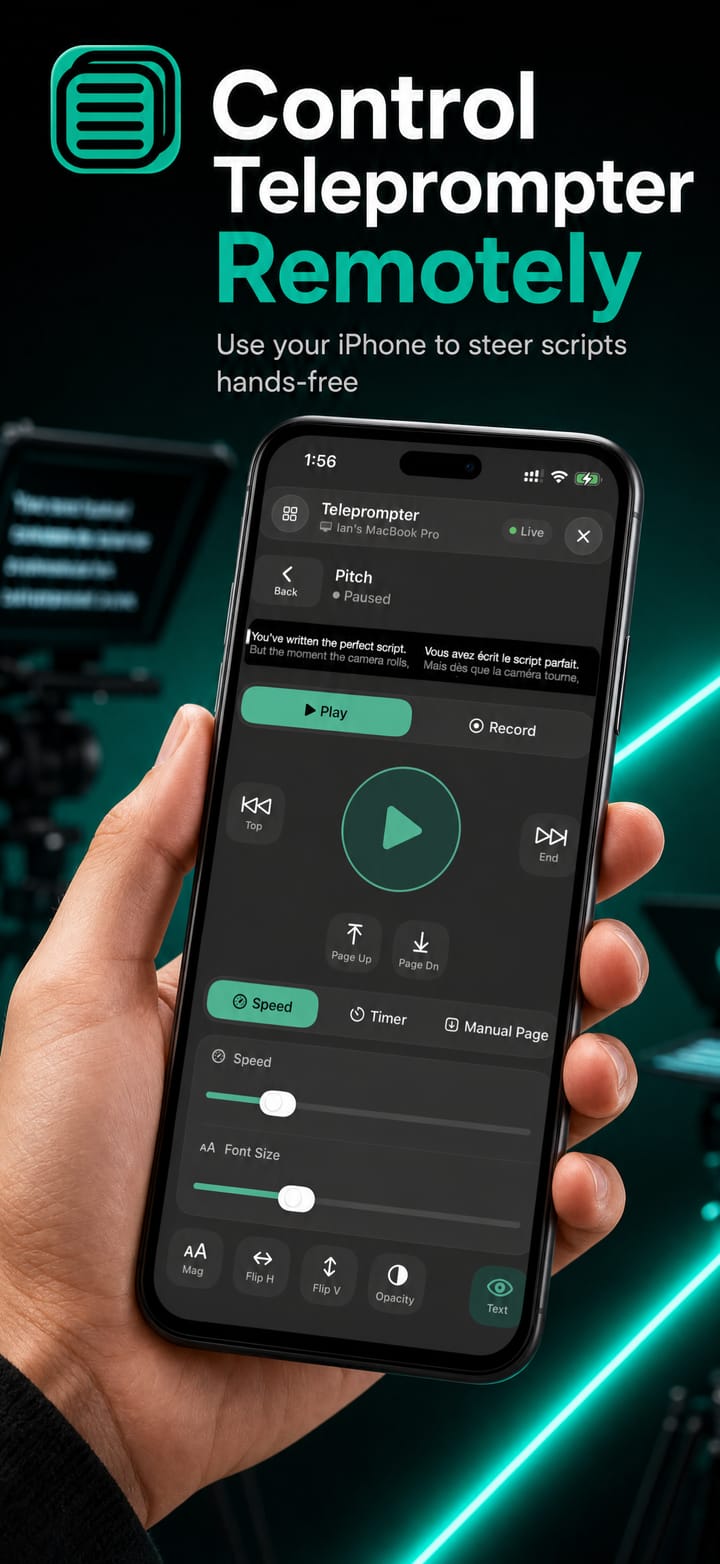
Pace both scripts from a remote or another Telepromptme app.

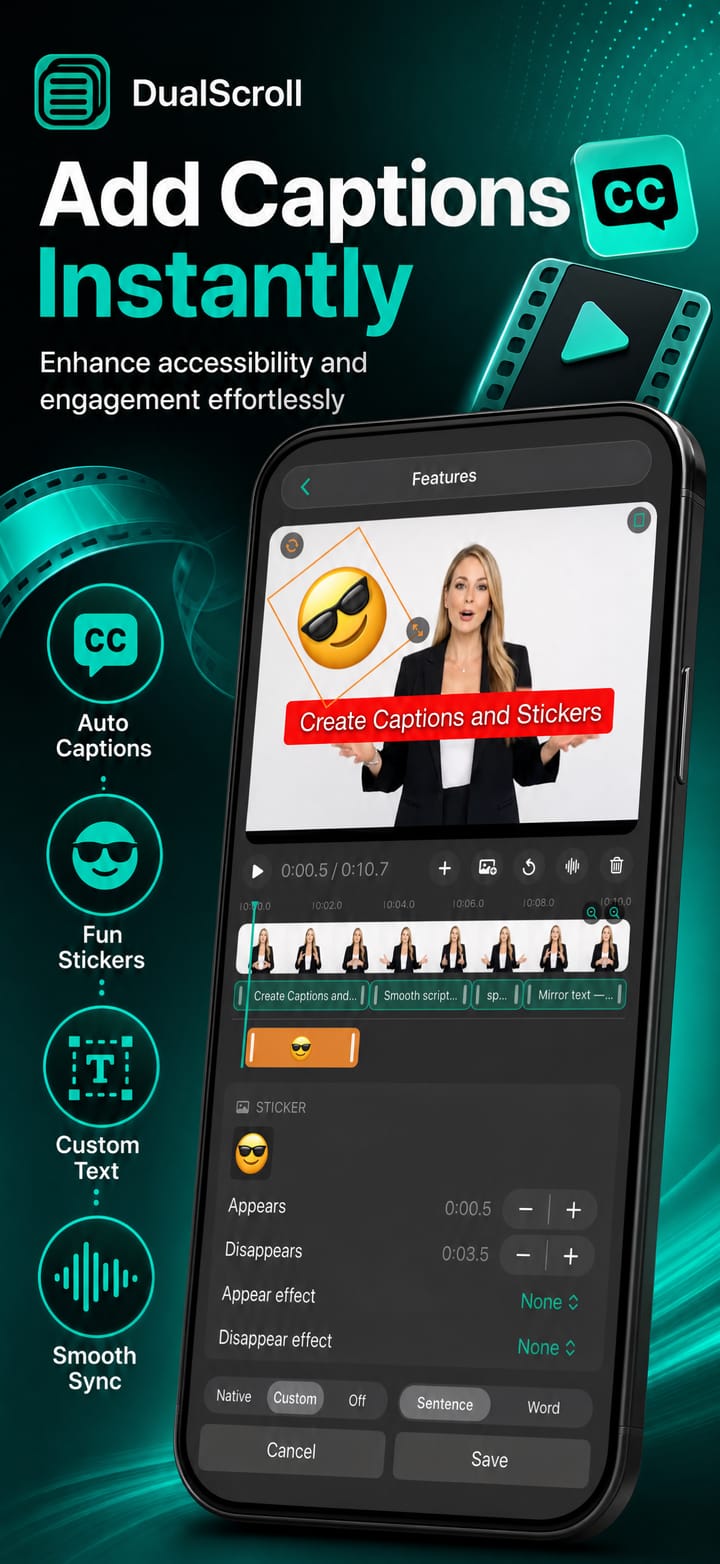
Automatic subtitles

Turn your primary script into captions on the finished video.

Video-conference overlay

Float a transparent dual prompter over your call.

macOS

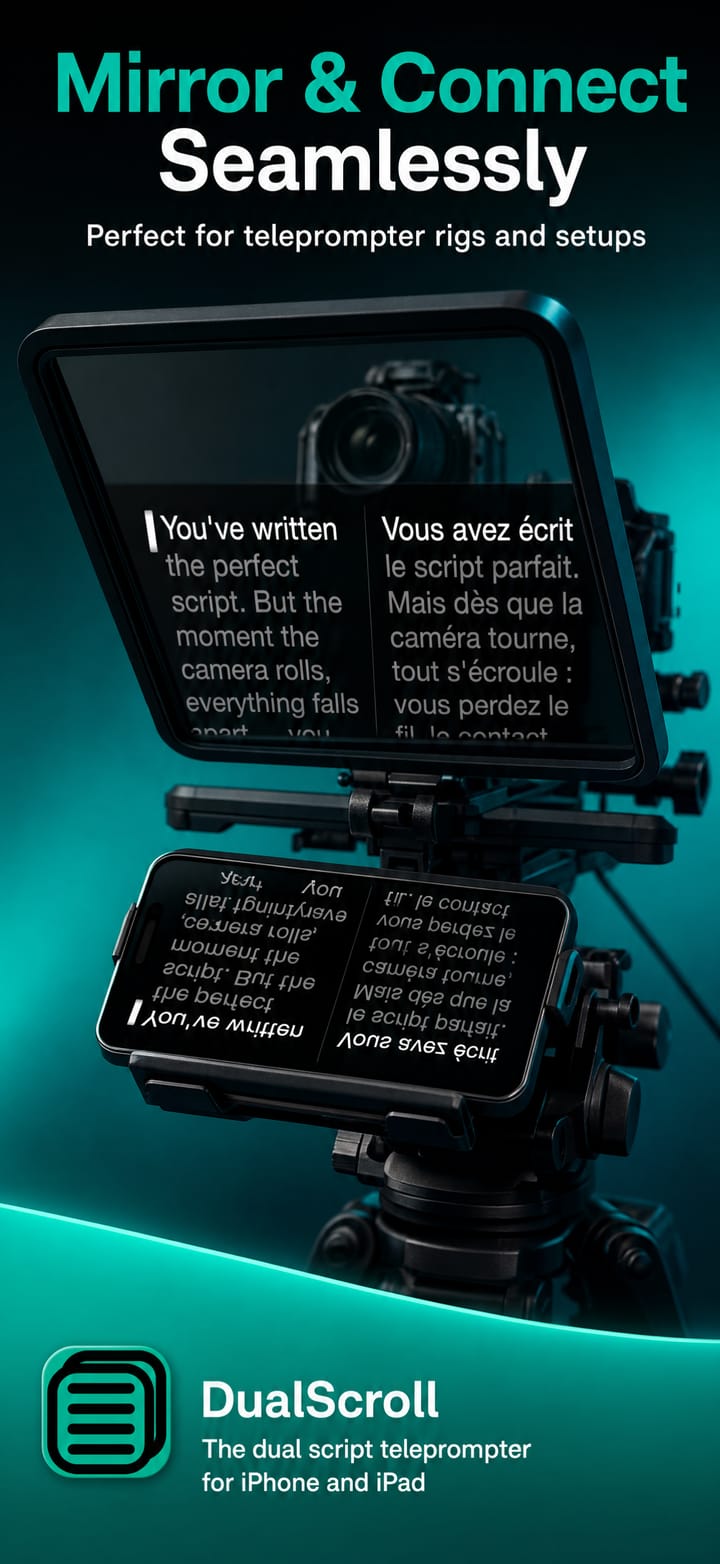
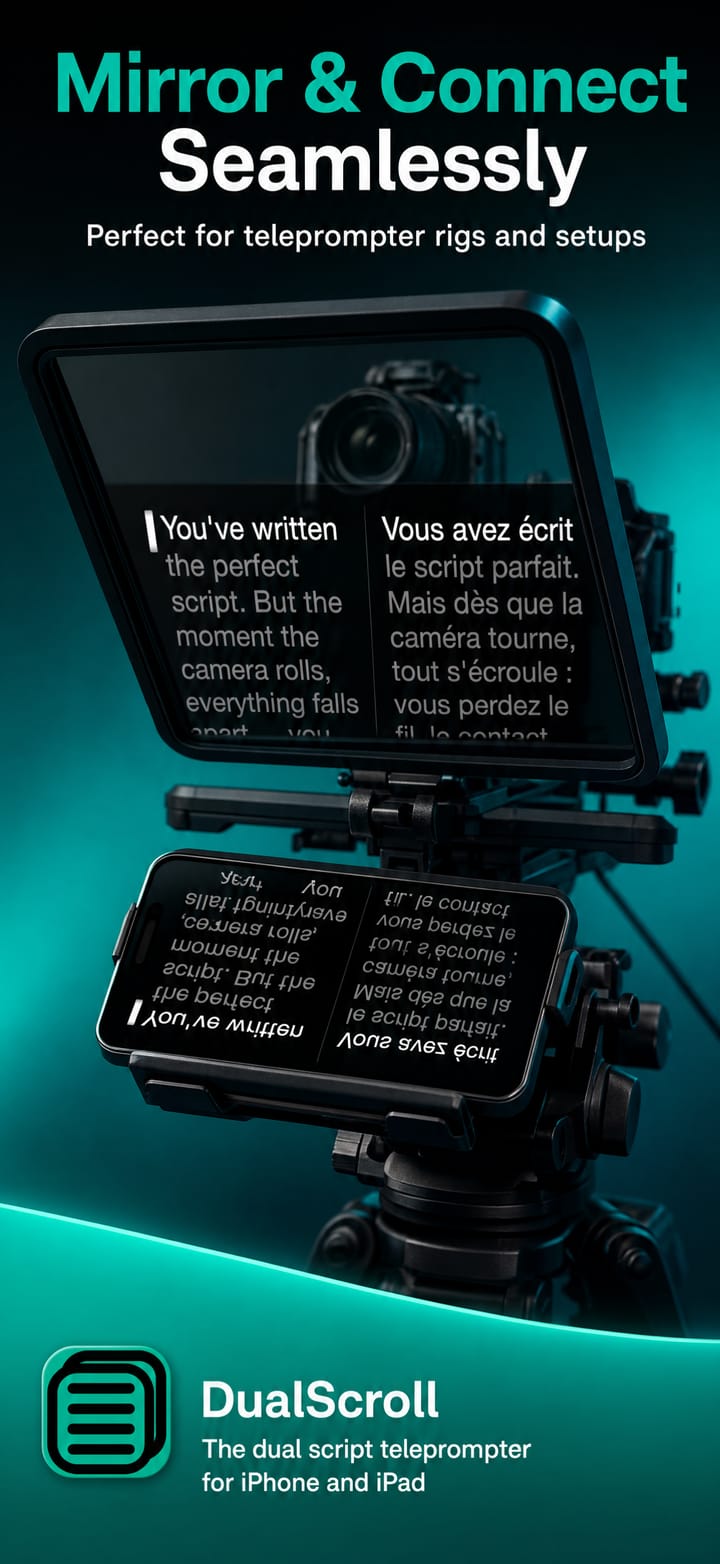
Mirror text & screen

Flip for mirror rigs, with full-screen mirroring on Mac.

macOS

Duplicate windows

Push extra scrolling windows to external monitors.

macOS

Import any script

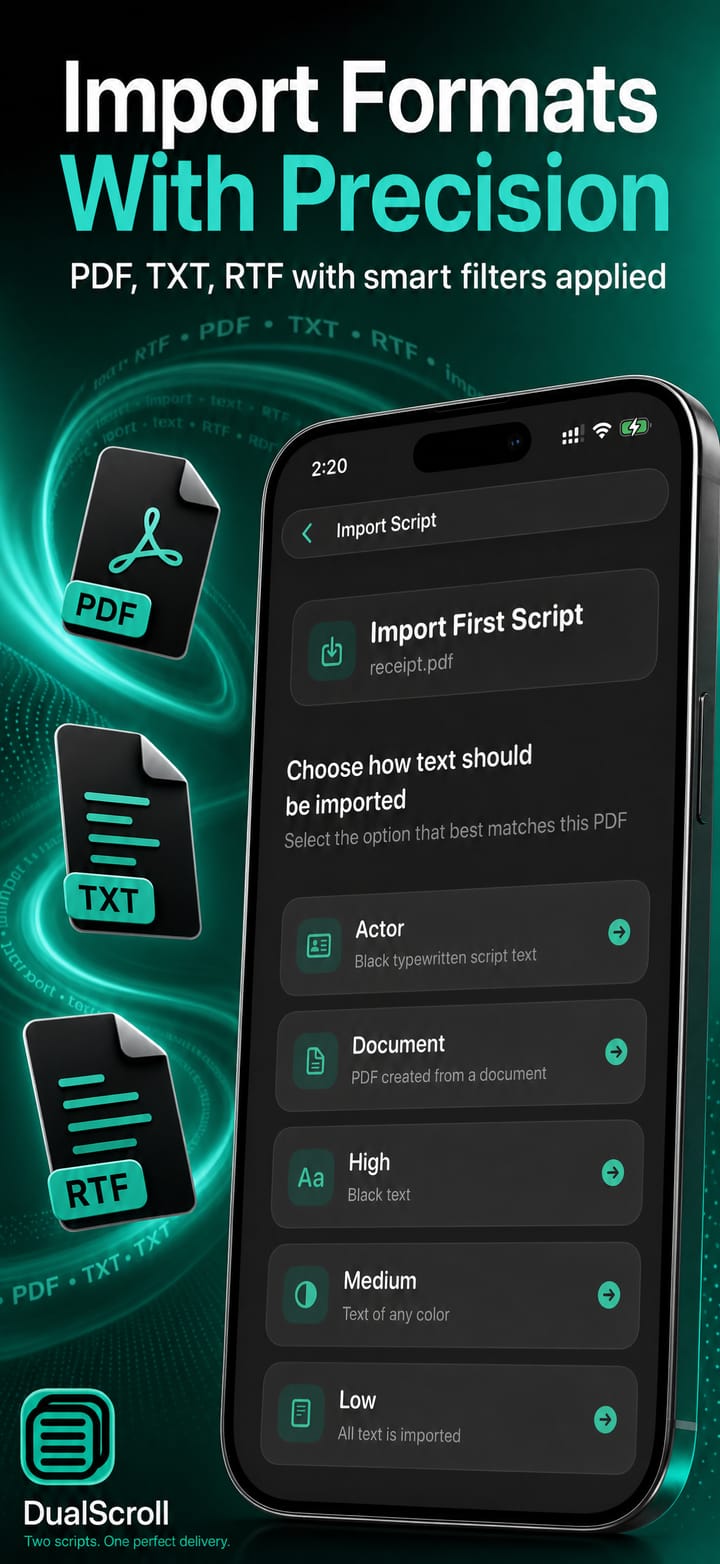
Load PDF, RTF and TXT files for either column.

iCloud sync

Keep both scripts synced across all your devices.

Fully customisable

Adjust font, speed and margins, with a dyslexia-friendly mode and built-in timers.

Built for interpreters

A presenter reads one language while an interpreter follows the other: locked together, line for line.

Queue & loop

Auto-play a sequence of dual scripts, or loop a pair until both reads land perfectly.

Two scripts, one scroll

Double the teleprompting pleasure.

Display two scripts side by side, scrolling together for a second language or alternative text.

  • Record up to 4K

    Capture your performance in 4K while both scripts roll.

  • Erase the background

    A crisp cutout of you, minus whatever's behind you: bilingual delivery with nothing to distract from it.

  • Remote control

    Pace both scripts from a remote or another Telepromptme app.

  • Automatic subtitles

    Turn your primary script into captions on the finished video.

Two scripts, one scroll

DualScroll
Video-conference overlayFloat a transparent dual prompter over your call.
Mirror text & screenFlip for mirror rigs, with full-screen mirroring on Mac.
Duplicate windowsPush extra scrolling windows to external monitors.
See it in action

DualScroll up close.

Real moments from DualScroll, captured on device.
“
Soooo helpful for language learning!
Mac100 · ★★★★★ App Store review
Pricing

Try it free. Upgrade when you're ready.

One purchase covers both iOS and macOS. No account required.

Lite
Free

A free trial of everything, capped at 60 seconds a session.

  • Two scripts scrolling side by side
  • Every feature unlocked, including captions, remote and Studio
  • Up to 60 seconds of play or recording at a time
  • One script, one recording, first page of a PDF
  • iPhone, iPad and Mac
Download free
Pro
$19.99 USDone-time

Unlimited prompting and recording. The production tools are in Pro Plus.

  • Everything in Lite, with the limits removed
  • Unlimited scripts and recordings
  • No time limit on prompting or recording
  • Full PDF import, every page
  • Video quality up to 8K
  • iCloud script sync, text mirror, see-through window
  • One purchase covers iPhone, iPad and Mac
Get Pro

Compare plans

Lite is a free trial of everything, capped per session. Pro removes the caps. Pro Plus is the only plan that keeps the production tools.

FeatureLiteProPro Plus
Prompting
Two scripts side by sideTwo scripts scroll together, each with its own pace.Two scripts side by side: includedTwo scripts side by side: includedTwo scripts side by side: included
Scripts you can keepHow many scripts can live in your library at once.OneUnlimitedUnlimited
Session lengthHow long one run of prompting or recording can last.60 secondsUnlimitedUnlimited
Import a scriptBring in text, rich text, PDF, and Word files on a Mac.First PDF pageEvery pageEvery page
Text mirroringFlip the words for a beam-splitter teleprompter rig.Text mirroring: includedText mirroring: includedText mirroring: included
See-through windowFloat the script over Zoom, Teams or Meet.See-through window: includedSee-through window: includedSee-through window: included
iCloud script syncYour scripts follow you across iPhone, iPad and Mac.iCloud script sync: includediCloud script sync: includediCloud script sync: included
iPhone, iPad and MacOne purchase covers every Apple device you own.iPhone, iPad and Mac: includediPhone, iPad and Mac: includediPhone, iPad and Mac: included
Recording
Record video and audioCapture yourself reading, in quality up to 8K.60 secondsRecord video and audio: includedRecord video and audio: included
Recordings you can keepHow many takes can live in your library at once.OneUnlimitedUnlimited
Camera backgroundReplace the room behind you with a blur, colour, image or video.TrialCamera background: not includedCamera background: included
Camera filtersTwelve looks applied live as you record.TrialCamera filters: not includedCamera filters: included
Editing and captions
Automatic captionsSubtitles from your script or from the recorded audio.TrialAutomatic captions: not includedAutomatic captions: included
Captions and stickersStyle, place and animate captions; add image overlays.TrialCaptions and stickers: not includedCaptions and stickers: included
Studio editing toolsMulti-track timeline: speed, music, colour, volume automation.TrialStudio editing tools: not includedStudio editing tools: included
Video filtersApply a look to a finished recording.TrialVideo filters: not includedVideo filters: included
Video stabilisationSmooth out a handheld or knocked camera.TrialVideo stabilisation: not includedVideo stabilisation: included
Studio and stage
Remote control and Apple WatchDrive the prompter from another device, or from your wrist.TrialRemote control and Apple Watch: not includedRemote control and Apple Watch: included
Duplicate prompter windowsMacSend a second scrolling window to another display or rig.TrialDuplicate prompter windows: not includedDuplicate prompter windows: included
Whole-screen mirroringMacMirror the whole screen to a second monitor, flipped if needed.TrialWhole-screen mirroring: not includedWhole-screen mirroring: included

Trial means the free plan can use it, within the session cap. It is not a countdown, and it is not included in Pro.

Questions

Good to know

How do I access the AI Assistant?
The AI Assistant is available when you're editing a script. Open your script and press the edit button at the top right: you'll then see a 'wand' icon at the bottom left of the screen which opens the AI Assistant. Chat with the assistant to help improve your script. Note: the AI Assistant is only available on devices capable of Apple Intelligence with it enabled, and it is not available in the DualScroll app.
What file formats are supported for import?
.txt, .pdf and .rtf are all supported. If you have other formats like Word or Pages, use those programs to save the files as .txt or .rtf and then import.
Why are there different options for importing PDF files?
PDF files are funny things: they may look like text when you view them, but they can actually be images or other objects that make the text hard to extract. There are five filter types to pull the text out whatever the format. Ideally the Document type gets the text; if that doesn't capture everything, try one of the other options.
I've been asked to make a 60-second video: how do I set a specific time to scroll for?
Set a timer for any amount of time and your script scrolls from top to bottom in exactly that time. Remember: a long time with a short script scrolls slowly, and vice versa, so make sure your script is long enough. Select Timer mode at the bottom left of the teleprompter screen (tap the scroll-mode icon to change it), tap the clock to set the duration, then press play or record.
There isn't much room for text on iPhone in landscape: can anything be done?
Yes, you can hide the top and bottom menu bars to give yourself much more room on a small screen. Change this in the app Settings.
How do I scroll the script on a repeating loop?
On iOS, long-press the play button; on macOS, right-click the play button, then choose the loop option. The script loops back to the top and plays again when it reaches the end. The same works in record mode by performing the same action on the record button.
Get started

Ready to try DualScroll?

Download it on the App Store and start in minutes, on iPhone, iPad and Mac.

5.0 · 5 ratings on the App Store