Zwei Skripte, eine Schriftrolle
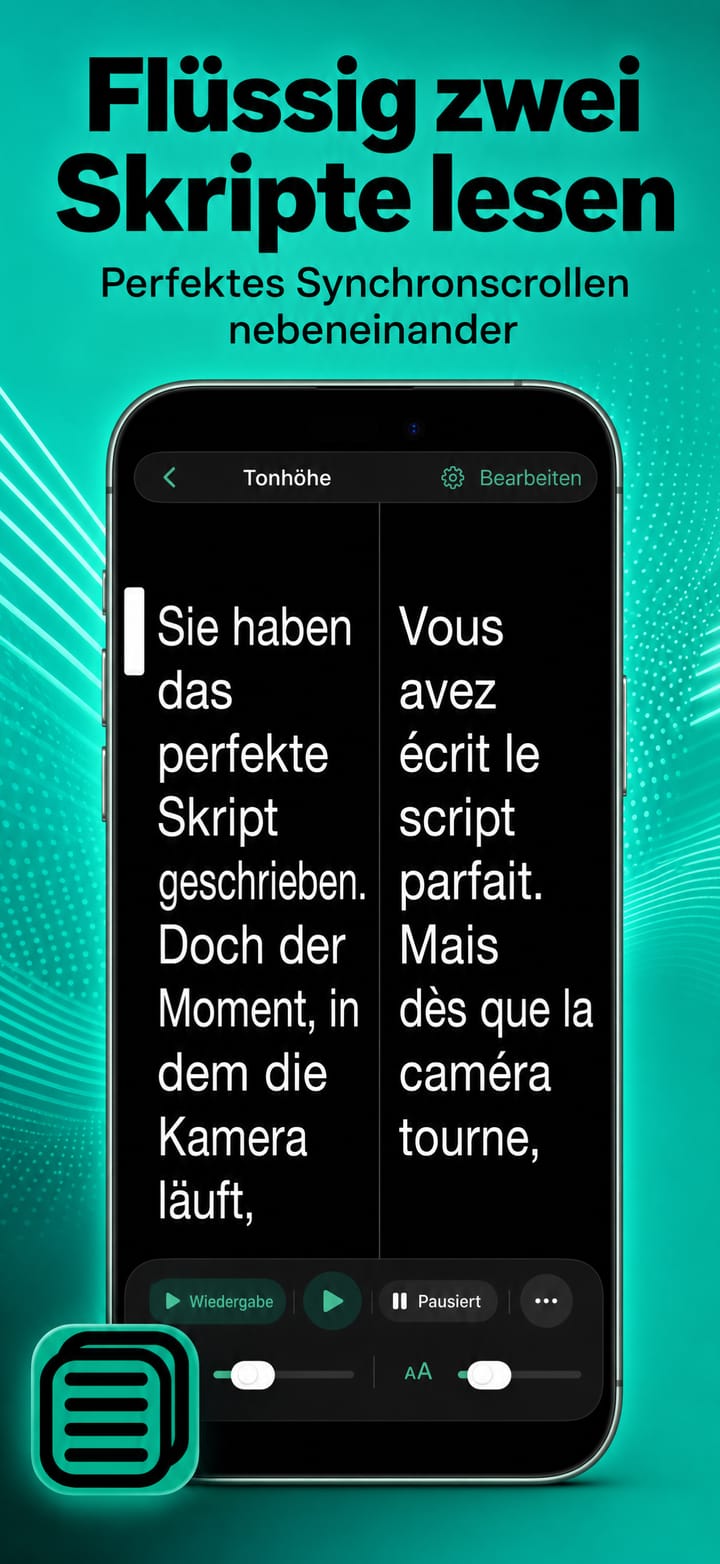
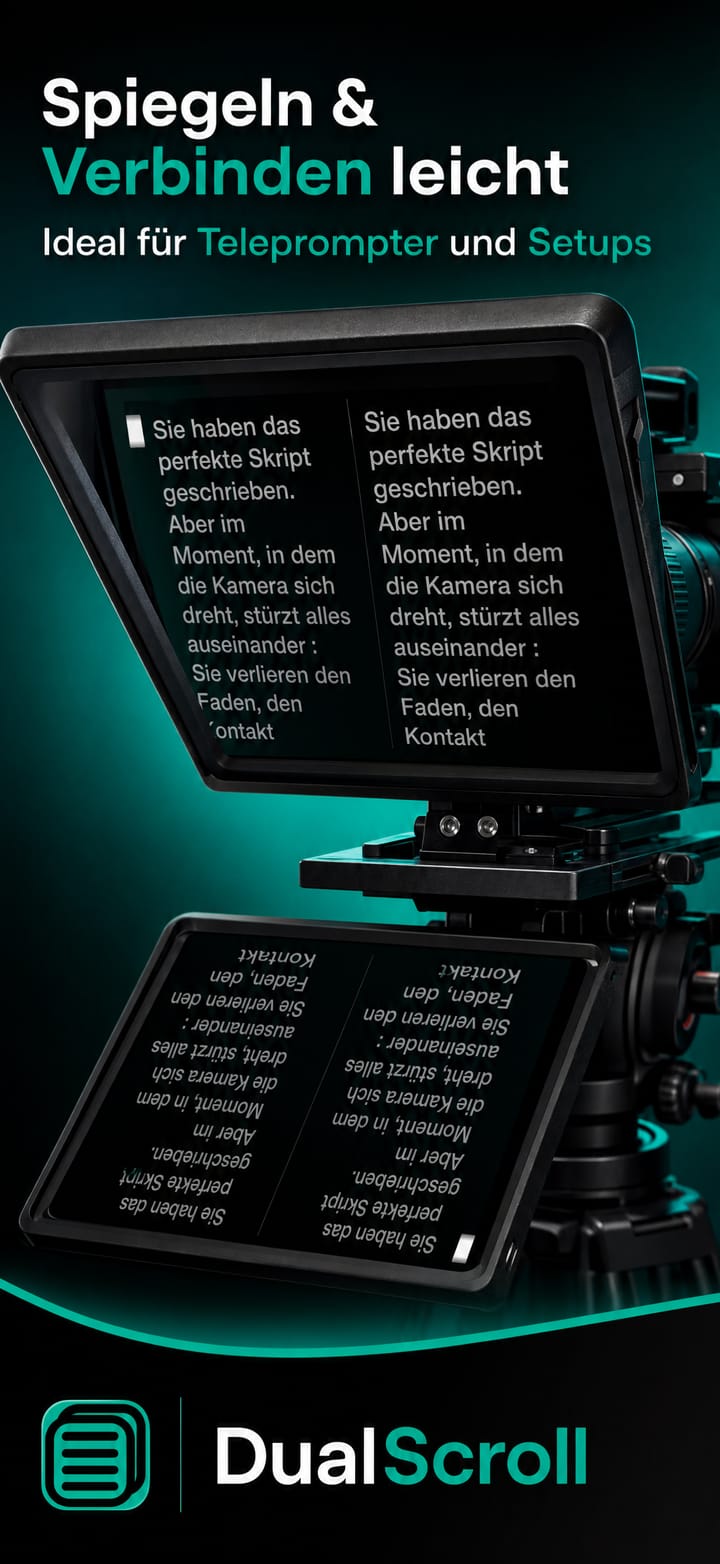
Zeigen Sie zwei Skripte nebeneinander an und scrollen Sie gemeinsam für eine zweite Sprache oder einen alternativen Text.
 Telepromptme
 Autoprompt
 DualScroll
 Narrate
 Lightboard Pro
 Earwig
 ChatterFish
 PointyPointer
 intuner
DualScroll führt zwei Skripte nebeneinander aus und scrollt dabei im perfekten Gleichschritt. Lesen Sie in einer Sprache, während Sie einen Blick auf eine andere werfen, bewahren Sie eine Übersetzung neben Ihrem Vortrag auf oder kombinieren Sie ein Drehbuch mit Hinweisen und Regieanweisungen.
DualScroll is focused, fast and refined — built to do one job beautifully.
Zeigen Sie zwei Skripte nebeneinander an und scrollen Sie gemeinsam für eine zweite Sprache oder einen alternativen Text.
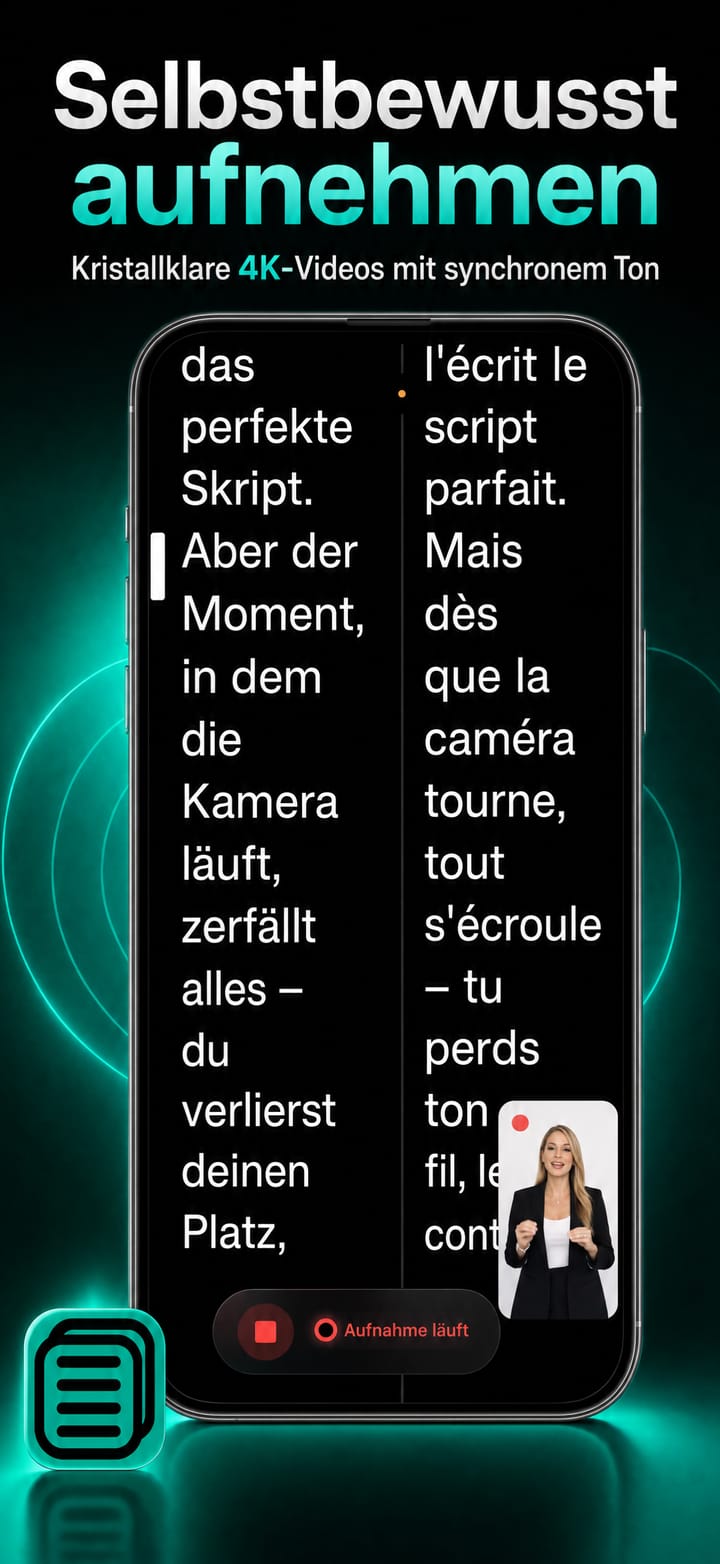
Erfassen Sie Ihre Leistung in 4K, während beide Skripte laufen.
Ein gestochen scharfer Ausschnitt von Ihnen, ohne alles, was sich hinter Ihnen verbirgt – zweisprachige Übertragung, ohne dass etwas davon ablenkt.
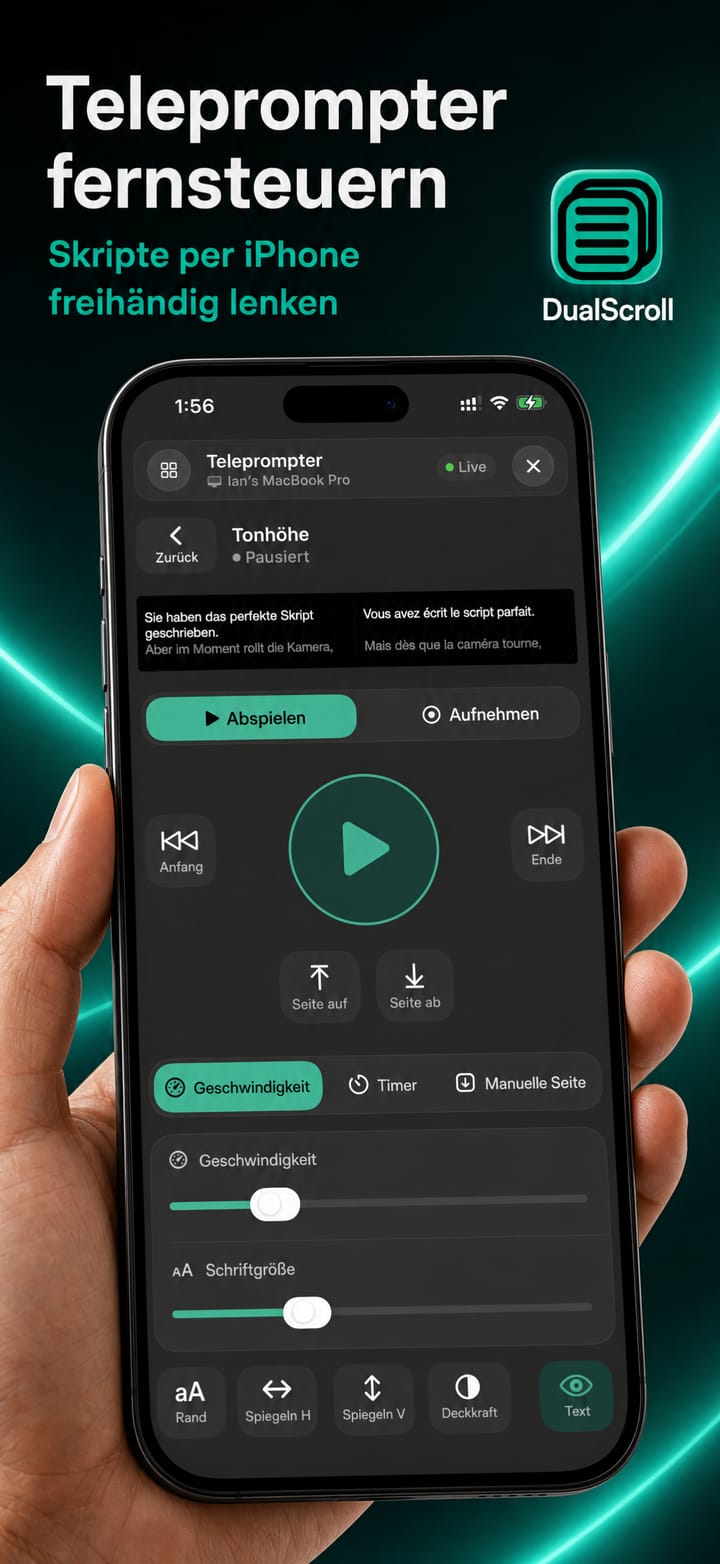
Führen Sie beide Skripte über eine Remote-App oder eine andere Telepromptme-App aus.
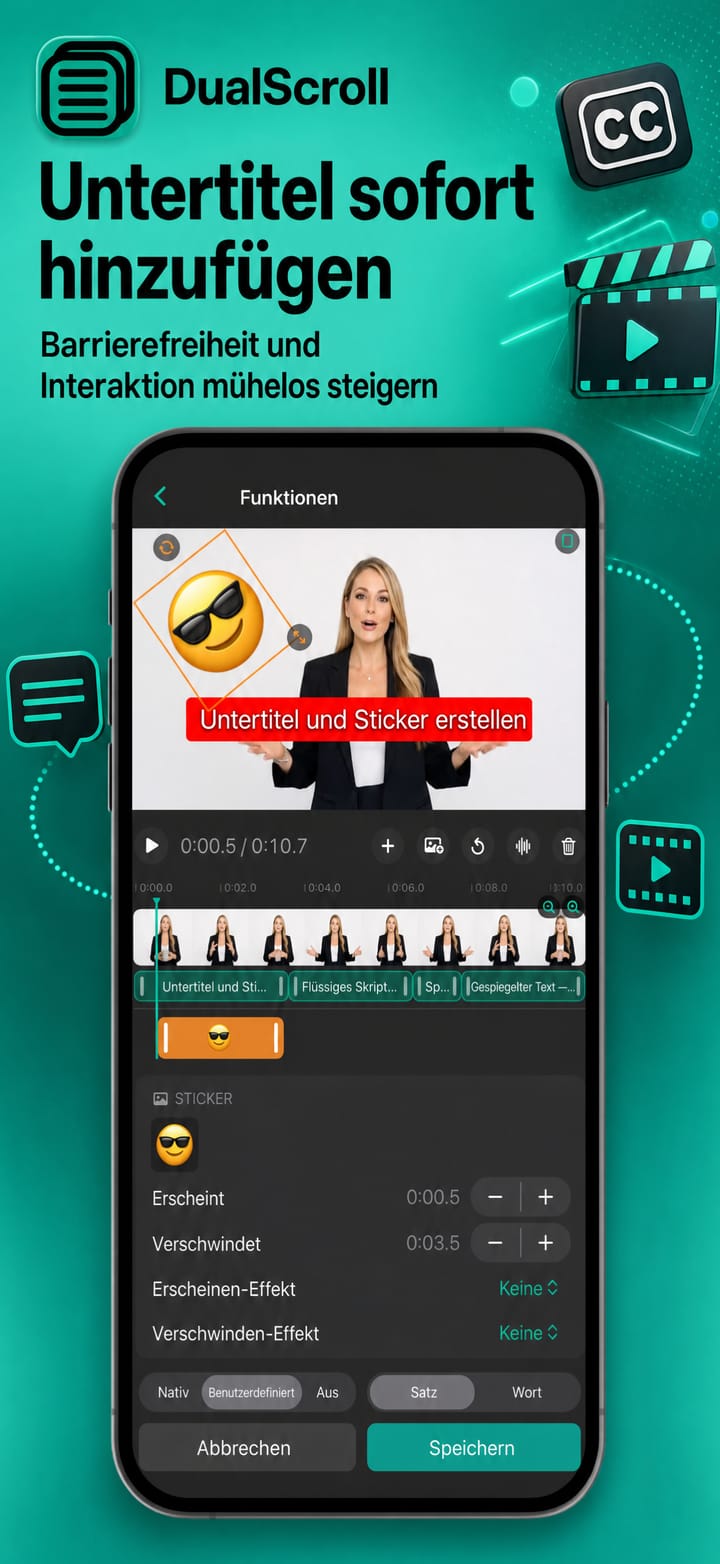
Wandeln Sie Ihr primäres Skript in Untertitel für das fertige Video um.
Lassen Sie einen transparenten Dual-Prompter über Ihrem Anruf schweben.
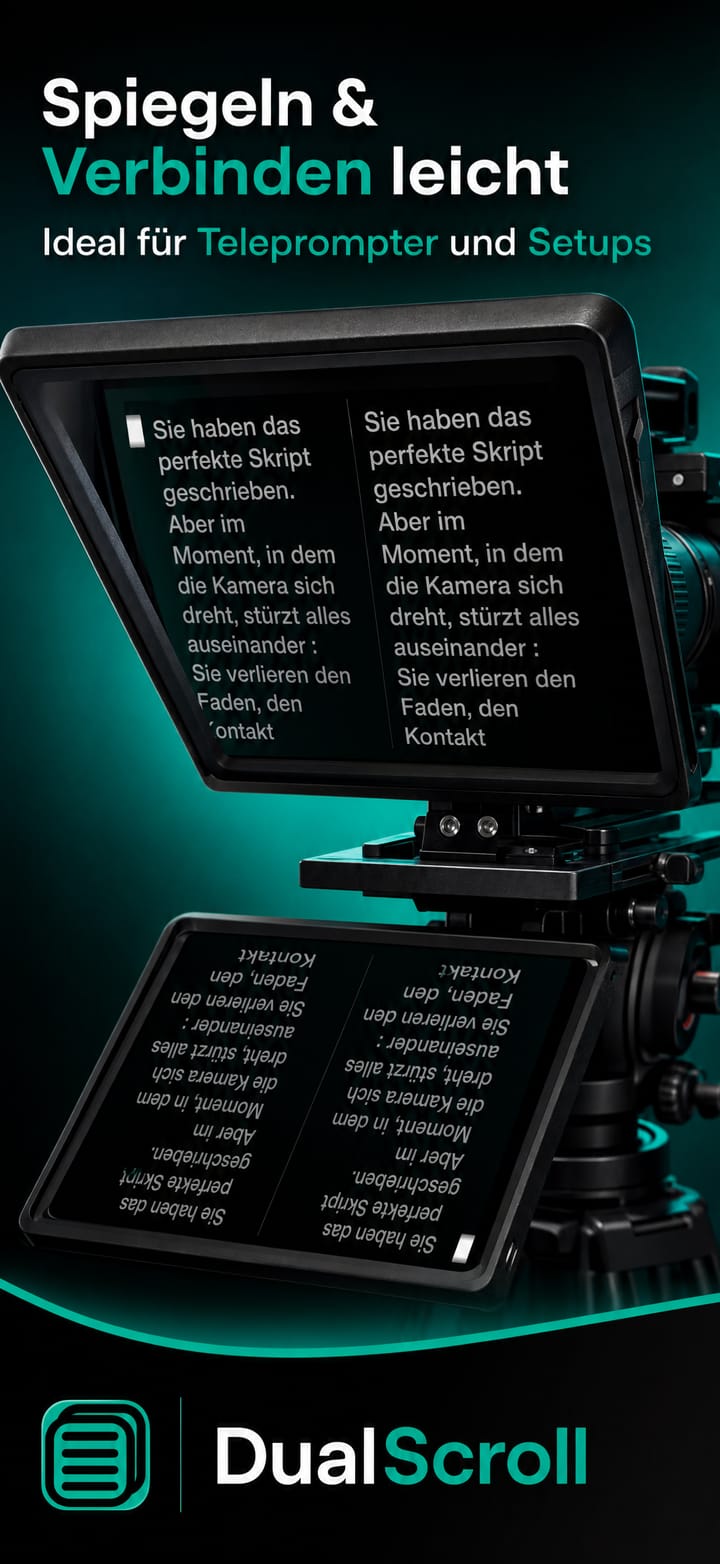
Flip für Spiegel-Rigs mit Vollbildspiegelung auf dem Mac.
Übertragen Sie zusätzliche Bildlauffenster auf externe Monitore.
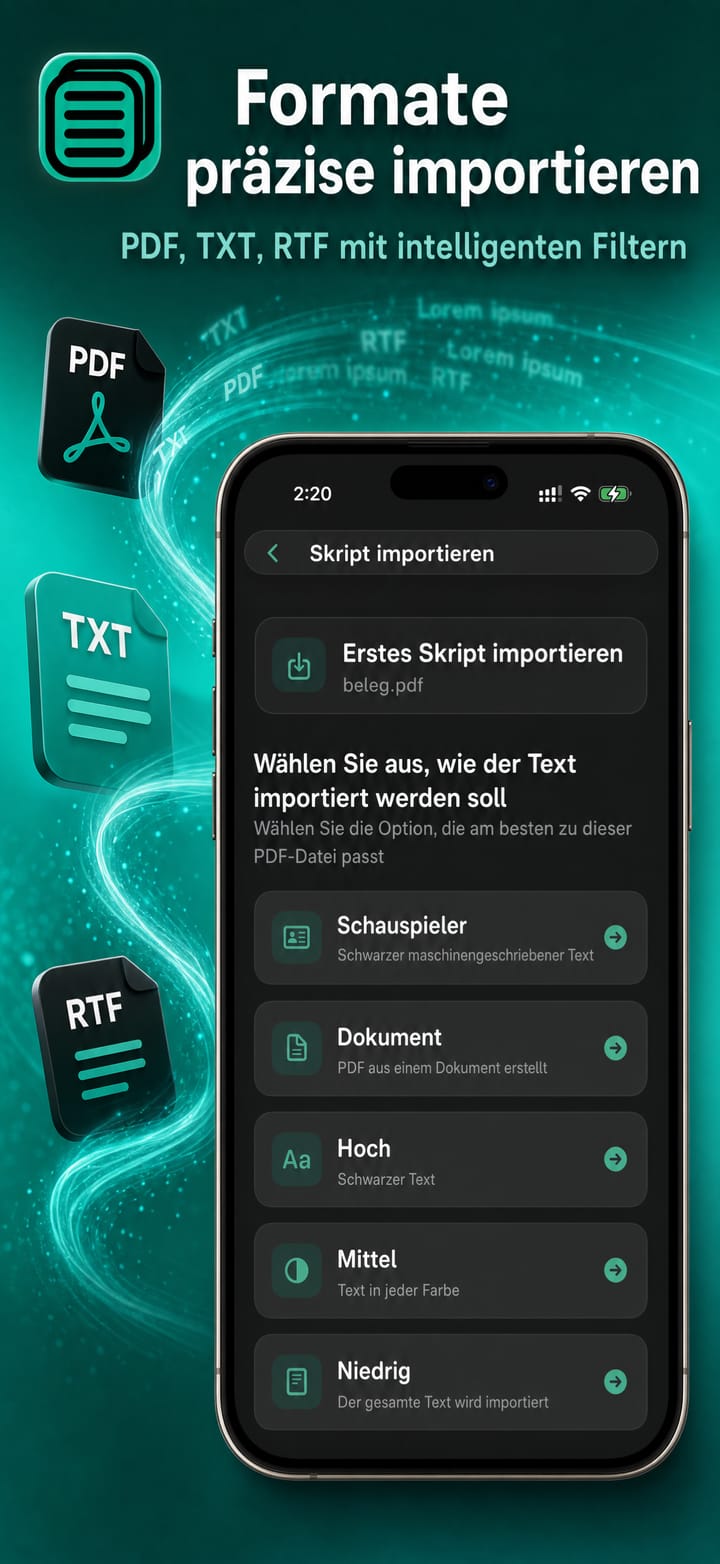
Laden Sie PDF-, RTF- und TXT-Dateien für jede Spalte.
Halten Sie beide Skripte auf allen Ihren Geräten synchronisiert.
Passen Sie Schriftart, Geschwindigkeit und Ränder mit einem Legasthenie-freundlichen Modus und integrierten Timern an.
Ein Moderator liest eine Sprache, während ein Dolmetscher der anderen folgt – Zeile für Zeile zusammengehalten.
Spielen Sie automatisch eine Folge von Doppelskripten ab oder wiederholen Sie ein Paar, bis beide Lesungen perfekt landen.
Zeigen Sie zwei Skripte nebeneinander an und scrollen Sie gemeinsam für eine zweite Sprache oder einen alternativen Text.
Erfassen Sie Ihre Leistung in 4K, während beide Skripte laufen.
Ein gestochen scharfer Ausschnitt von Ihnen, ohne alles, was sich hinter Ihnen verbirgt – zweisprachige Übertragung, ohne dass etwas davon ablenkt.
Führen Sie beide Skripte über eine Remote-App oder eine andere Telepromptme-App aus.
Wandeln Sie Ihr primäres Skript in Untertitel für das fertige Video um.
Direkt in der App aufgezeichnet – auf iPhone, iPad und Mac.
Soooo hilfreich beim Sprachenlernen!
Ein Kauf deckt sowohl iOS als auch macOS ab. Kein Konto erforderlich.
Probieren Sie Dual-Scrolling kostenlos aus.
Unbegrenzt alles auf iOS und macOS.
Pro-Funktionen werden jährlich in Rechnung gestellt.
Laden Sie es im App Store herunter und starten Sie in wenigen Minuten – auf iPhone, iPad und Mac.